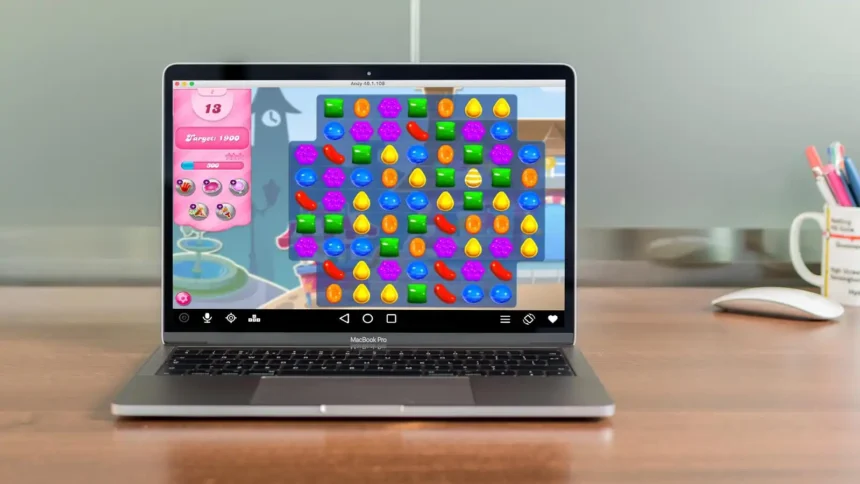
If you own a MacBook and wish you could run Android apps or play Android games directly on your macOS device, you’re not alone. Many Mac users look for an Android emulator for Mac to bring the best of both worlds together. With the right emulator, you can easily install mobile apps, test Android software, or even enjoy high-graphic Android games without buying a separate phone or tablet.
What Is an Android Emulator for Mac?
An Android emulator for Mac is a software tool that allows your MacBook to behave like an Android phone or tablet. Instead of holding two different devices, the emulator creates a virtual Android environment on your macOS.
Think of it like a “pretend Android phone” inside your Mac. Once installed, you can download apps from the Google Play Store, run them on your computer, and use them almost the same way you would on an Android device. This means you can run WhatsApp, TikTok, Instagram, or even heavy mobile games like PUBG Mobile or Call of Duty directly on your Mac screen.
Why Use an Android Emulator on Mac?
There are several reasons why people prefer to run Android on MacBook using emulators:
- Play Mobile Games on Bigger Screen – Games like Free Fire, Among Us, or Mobile Legends look amazing on a larger display. Plus, using your keyboard and mouse makes gaming smoother.
- Test Apps as a Developer – If you create apps for Android, an emulator is a safe environment to test features before launching.
- No Extra Device Needed – Instead of buying an Android phone, Mac users can just install an emulator.
- Multi-tasking Made Easy – You can run apps side by side while using macOS features.
- Faster Performance – Some emulators are optimized for Apple’s M1 and M2 chips, making them even faster.
In short, an Android emulator for MacBook is both fun and useful for gamers, students, developers, and casual users.
Best Android Emulators for Mac (Free & Easy)
There are many free and paid options available, but not all of them are equally smooth. Below are some of the best Android emulators for Mac that work well on macOS, including Intel, M1, and M2 chip models.
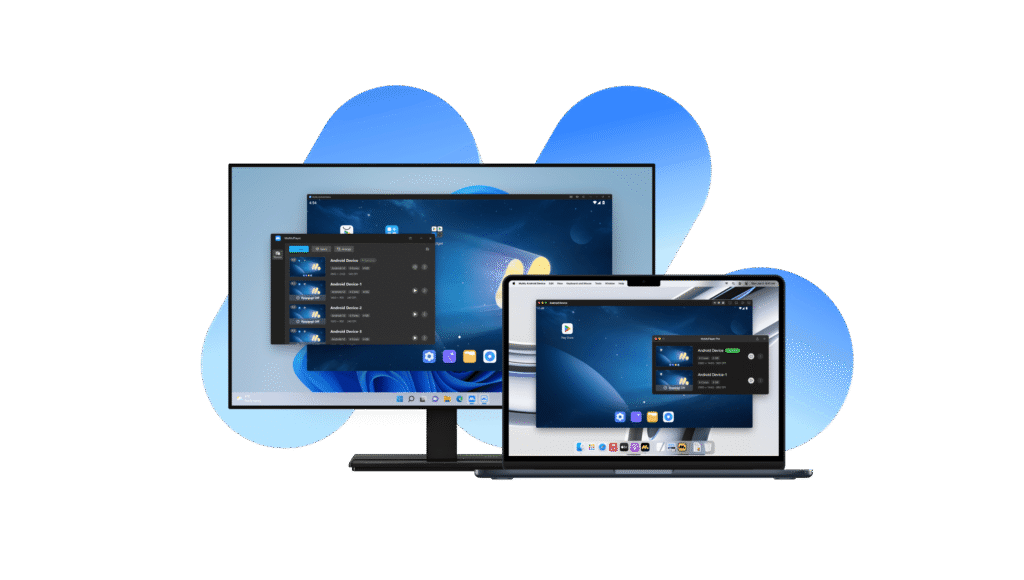
BlueStacks – The Most Popular Emulator
When people think about Android emulators, BlueStacks is usually the first name that comes up. It’s one of the oldest and most trusted emulators, and luckily, it supports macOS.
BlueStacks allows you to:
- Download Android apps directly from the Google Play Store.
- Sync your Google account easily.
- Play mobile games using your MacBook keyboard and mouse.
- Run multiple apps or games at the same time.
It’s designed for smooth gaming, which makes it the best option for those who want to play titles like Clash of Clans, Call of Duty Mobile, and Free Fire on their MacBook.
NoxPlayer – Smooth and Fast for Gaming
If you want a lightweight Android emulator for Mac, then NoxPlayer is a great choice. It is optimized for gaming and comes with built-in features like:
- Keyboard mapping for quick controls.
- Support for gamepads.
- Ability to record your gameplay.
NoxPlayer runs very well on macOS and doesn’t consume as many resources as BlueStacks. Many gamers prefer NoxPlayer because it is fast, reliable, and free.
Genymotion – Best for App Testing
While BlueStacks and NoxPlayer are best for gamers, Genymotion is the top choice for developers. If you are building Android apps, you can test your apps on different Android versions (like Android 11, 12, or 13) without needing real phones.
Some benefits of Genymotion include:
- Works with Android Studio.
- Cloud-based testing.
- Multiple device simulation (Pixel, Samsung, OnePlus, etc.).
- Safe and stable for professional use.
If your goal is app development and testing, Genymotion is definitely the best developer-friendly Android emulator for Mac.
How to Install an Android Emulator on Mac
Installing an Android emulator on macOS is not very difficult. Here’s the simple process:
- Visit the official website of the emulator (like BlueStacks, NoxPlayer, or Genymotion).
- Download the Mac version installer.
- Open the downloaded .dmg file and drag it to your Applications folder.
- Launch the emulator and sign in with your Google account.
- Now, open the Google Play Store inside the emulator to install apps and games.
That’s it! Within minutes, your MacBook will act like an Android device.
Things to Check Before You Install
Before downloading any emulator, make sure to check:
- Mac OS Version – Some emulators only work on macOS Mojave or later.
- Processor Type – If you have an M1 or M2 chip, choose an emulator that supports ARM architecture.
- RAM & Storage – At least 4GB RAM and 10GB free storage is recommended.
- Trusted Source – Only download from official websites to avoid malware.
These steps will ensure you get the best Android emulator for Mac without issues.
Can You Play Android Games on Mac?
Yes, absolutely! Playing Android games on Mac is one of the biggest reasons people install emulators. Whether you enjoy racing, action, puzzle, or battle royale games, you can run them easily on your MacBook.
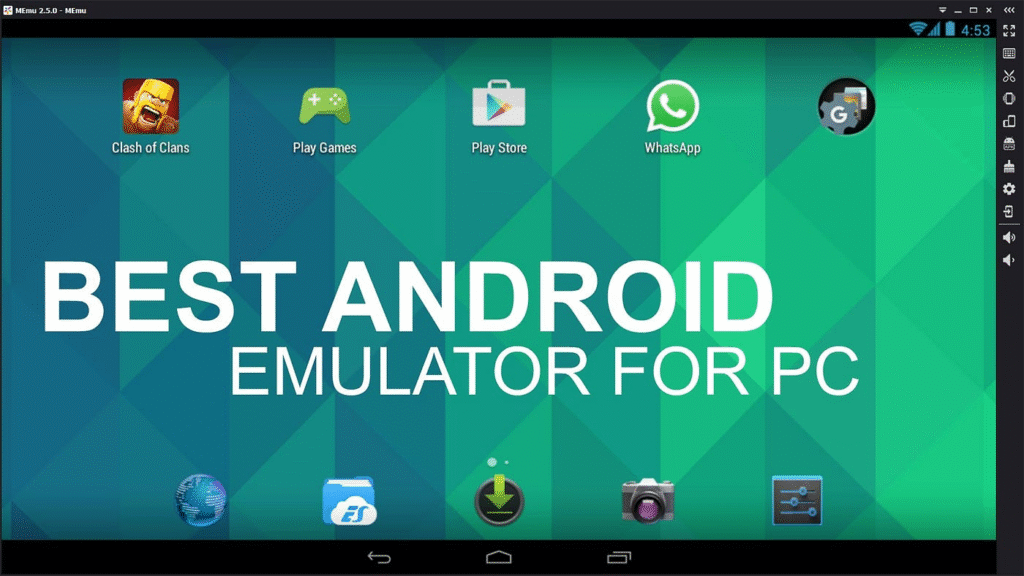
Best Games to Try First
Here are some popular games that run smoothly on most emulators:
- PUBG Mobile
- Free Fire
- Clash of Clans
- Mobile Legends
- Genshin Impact
- Among Us
- Call of Duty Mobile
All these games look better on a bigger screen, and with the help of a keyboard or mouse, you get more control than on a touchscreen.
How to Connect Game Controls
Most emulators like BlueStacks and NoxPlayer allow you to map keyboard keys for gaming. For example:
- Use WASD keys for movement.
- Spacebar for jumping.
- Mouse for aiming and shooting.
Some emulators also allow you to connect an external controller, like an Xbox or PlayStation controller, for an even better gaming experience.
Android Emulator for Mac M1 & M2 Chips
Apple’s latest MacBooks come with M1 and M2 chips, which are much faster than Intel processors. But not every emulator works perfectly with these chips.
Here are the best options for Android emulator for Mac M1 and M2:
- BlueStacks 5 (Mac version)
- NoxPlayer (ARM support)
- Genymotion (cloud-based, works with M1/M2)
These emulators are updated frequently to provide smooth performance on Apple Silicon Macs.
Safe and Secure Emulators Only
When searching for a free Android emulator for Mac, you might come across many unknown websites. Be careful—some files can contain malware. Always download from official websites or trusted sources like BlueStacks.com, Bignox.com, or Genymotion.com.
Avoid “cracked” versions or suspicious third-party downloads. A secure emulator keeps your Mac safe from viruses and data theft.
The Bottom Line
Using an Android emulator for Mac is the easiest way to enjoy Android apps and games without needing a separate phone. Whether you are a gamer who wants to play PUBG Mobile, a student who needs Android apps, or a developer testing new apps, emulators like BlueStacks, NoxPlayer, and Genymotion offer excellent solutions.
Just make sure to check your Mac’s compatibility, download only from official sources, and choose the emulator that fits your needs—gaming, productivity, or development. Once installed, you’ll unlock a whole new world of Android apps right on your MacBook.