Bootstrap 5 and Dropzone.js make it incredibly easy to create stylish and functional drag-and-drop file upload areas. However, the default styling of Dropzone may not always match your project’s design. By customizing Dropzone styles in Bootstrap 5, you can create a visually appealing file upload section that blends seamlessly with your website. This guide will walk you through the process of adding Dropzone to Bootstrap 5 and customizing its styles for a better user experience. Whether you’re a beginner or an experienced developer, you’ll find useful tips to enhance your Dropzone styling.
What Is Bootstrap 5 Dropzone?
Dropzone.js is a JavaScript library that simplifies file uploads by allowing users to drag and drop files into a designated area. It provides built-in previews, progress bars, and error handling. When combined with Bootstrap 5, Dropzone seamlessly integrates into modern web designs, ensuring a professional look and feel.
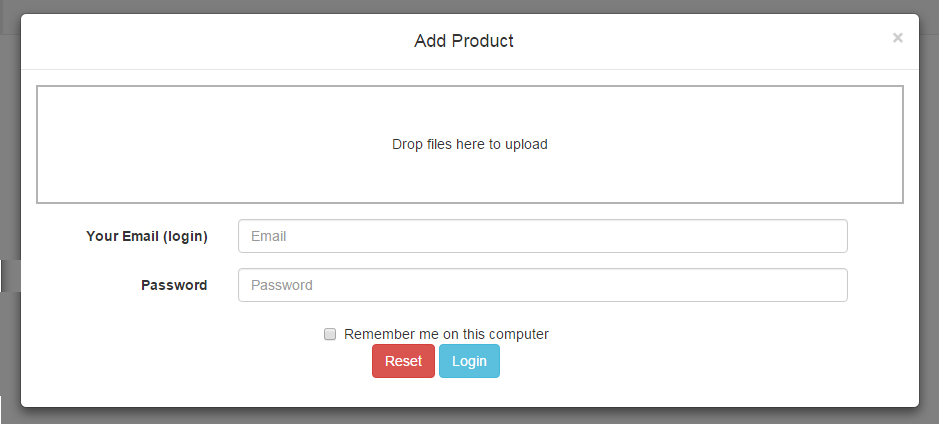
By default, Dropzone provides a simple gray-bordered box for file uploads. While functional, this default style may not always match the aesthetics of your website. That’s where Bootstrap 5’s styling capabilities come in handy. With custom CSS and Bootstrap classes, you can modify Dropzone to match your design preferences.
Why Customize Dropzone Styles?
The default Dropzone styling is minimalistic and might not always fit your website’s theme. Customizing Dropzone styles allows you to:
- Improve User Experience: A well-styled Dropzone looks more engaging and encourages users to interact with the file upload section.
- Match Website Design: Customizing Dropzone ensures that it blends seamlessly with your Bootstrap 5 layout.
- Enhance Readability: By adjusting text, icons, and background styles, you can make Dropzone more user-friendly.
- Optimize for Mobile Users: Responsive styling ensures a smooth experience across different screen sizes.
Customizing Dropzone doesn’t require advanced coding skills. With a few CSS tweaks and Bootstrap utilities, you can transform the default Dropzone into a polished and professional file upload area.
How to Add Dropzone in Bootstrap 5?
Adding Dropzone to Bootstrap 5 is simple and requires only a few steps. First, you need to include the Dropzone library, create an upload form, and enable Dropzone with JavaScript.
Include Dropzone Library
To use Dropzone.js, you must include the necessary CSS and JavaScript files in your project. You can either download the files or use a CDN for quick integration.
Using a CDN:
html
CopyEdit
<!– Dropzone CSS –>
<link rel=”stylesheet” href=”https://cdnjs.cloudflare.com/ajax/libs/dropzone/5.9.3/dropzone.min.css”>
<!– Dropzone JavaScript –>
<script src=”https://cdnjs.cloudflare.com/ajax/libs/dropzone/5.9.3/min/dropzone.min.js”></script>
If you prefer local installation, you can download Dropzone.js and include the files in your project folder.
Create a Simple Dropzone Form
Next, create an HTML form with the Dropzone class. This form serves as the upload area.
html
CopyEdit
<form action=”/upload” class=”dropzone” id=”myDropzone”>
<div class=”dz-message”>
Drag & drop files here or click to upload.
</div>
</form>
Enable Dropzone with JavaScript
By default, Dropzone automatically converts <form class=”dropzone”> elements into dropzones. However, if you want more control over its behavior, initialize it manually with JavaScript.
html
CopyEdit
<script>
Dropzone.options.myDropzone = {
paramName: “file”,
maxFilesize: 5, // Maximum file size in MB
acceptedFiles: “image/*,application/pdf”, // Allowed file types
};
</script>
This basic setup allows users to upload files with drag-and-drop functionality. Now, let’s customize the styles to enhance its appearance.
Basic Styling for Bootstrap 5 Dropzone
By default, Dropzone comes with a simple gray border and minimal styling. To make it more attractive, you can customize its background, borders, text, and icons using Bootstrap 5 and custom CSS.
Custom CSS for Basic Styling
css
CopyEdit
.dropzone {
border: 2px dashed #007bff;
background-color: #f8f9fa;
border-radius: 10px;
padding: 20px;
}
.dz-message {
font-size: 18px;
color: #495057;
}
This CSS changes the border color to Bootstrap’s primary blue, adds a light background, and enhances the text readability.
Advanced Dropzone Styling Tips
To take your Dropzone customization further, you can modify hover effects, text styling, icons, and responsiveness.
Custom Background and Borders
Adding a background image or gradient can make your Dropzone stand out.
css
CopyEdit
.dropzone {
background: linear-gradient(135deg, #f8f9fa, #e9ecef);
border: 2px dashed #28a745;
}
Adding Hover Effects
Enhancing Dropzone with hover effects improves user engagement.
css
CopyEdit
.dropzone:hover {
background-color: #e9ecef;
border-color: #17a2b8;
}
Changing Dropzone Text and Icons
Dropzone allows customization of the default text and icons.
html
CopyEdit
<form action=”/upload” class=”dropzone”>
<div class=”dz-message”>
<i class=”fas fa-cloud-upload-alt”></i>
<p>Drop files here or click to upload.</p>
</div>
</form>
And modify the icon size and color with CSS:
css
CopyEdit
.dz-message i {
font-size: 40px;
color: #007bff;
}
Making Dropzone Responsive in Bootstrap 5
Ensure that Dropzone looks good on all devices using Bootstrap’s responsive classes.
css
CopyEdit
@media (max-width: 768px) {
.dropzone {
padding: 10px;
}
.dz-message {
font-size: 16px;
}
}
This ensures a compact layout on smaller screens.
Common Dropzone Issues and Fixes
Despite its ease of use, Dropzone may encounter issues like:
- Files not uploading: Check if the server-side script is correctly handling the uploaded files.
- Incorrect file type errors: Ensure acceptedFiles is set properly.
- Dropzone not initializing: Verify that the Dropzone library is correctly included in your project.
- Style conflicts with Bootstrap: Add custom CSS rules to override unwanted Bootstrap styles.
Most issues can be resolved by reviewing the Dropzone documentation and checking your JavaScript console for errors.
The Bottom Line
Bootstrap 5 and Dropzone.js provide a powerful way to add drag-and-drop file upload functionality to your website. However, the default styles may not always fit your project’s design. By customizing Dropzone with CSS and Bootstrap utilities, you can create a visually appealing and user-friendly upload area.
With simple tweaks like changing borders, backgrounds, hover effects, and icons, you can transform Dropzone into a professional-looking component. Additionally, making Dropzone responsive ensures a seamless experience across all devices.
Now that you understand how to style Dropzone in Bootstrap 5, start experimenting with different designs to match your website’s aesthetics. Happy coding!